
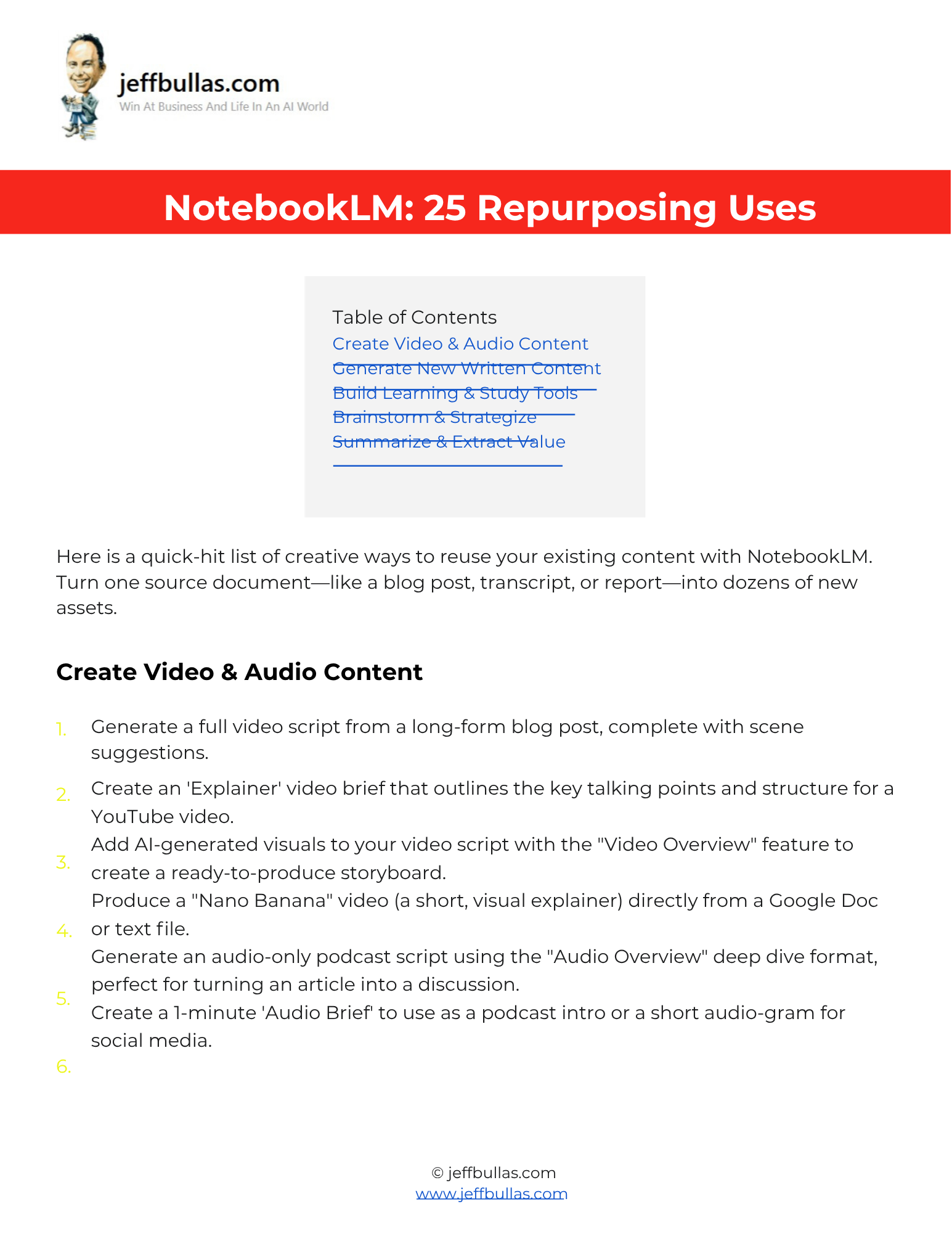
This resource helps you multiply the value of your existing content by providing 25 creative ways to repurpose it using NotebookLM. It shows you how to turn a single source document—like a blog post, transcript, or report—into dozens of new assets.
NotebookLM: 25 Repurposing Uses
This document provides a list of 25 creative ways to reuse your existing content with NotebookLM. The ideas are organized into five key categories: Create Video & Audio Content , Generate New Written Content , Build Learning & Study Tools , Brainstorm & Strategize , and Summarize & Extract Value. You can learn how to turn a blog post into a full video script , repurpose a webinar transcript into a multi-part email series , create an interactive quiz from a “how-to” guide , or even generate a ‘Mind Map’ to visually organize the core concepts from your source material.
How this helps you apply the information
This list acts as an idea bank for action. You can scan the different categories to find a specific, tangible use case that solves a current problem—like generating a press release or creating an ‘Audio Brief’ for social media —and apply it to your own content library.
Who is this ideal for?
This resource is ideal for content creators, marketers, students, and researchers who want to maximize the ROI of their existing content and turn their library of documents into new, valuable assets.
Concluding thought
By using these 25 methods, you can stop creating content from scratch and start leveraging NotebookLM to transform one source document into a wide array of new assets for video, social media, email, and more.
How to Use This
- Make Your Own Editable Copy:
- Open the link provided to access the master Google Doc.
- Once the Google Doc is open, navigate to the menu: File > Make a copy.
- A dialog box will appear. You can rename your copy if you wish and choose where to save it in your personal Google Drive.
- Click “Make a copy.” This action saves an editable version of the document to your Google Drive.
- Using Your Use Case List:
- Review the five categories and identify your primary goal (e.g., Create Video, Build Learning Tools).
- Choose a specific use case from the list that aligns with a document you already have.
- Use the selected idea as a starting point to prompt NotebookLM with your own source material.
Frequently Asked Questions
What kind of video content can I create?
You can generate a full video script from a blog post, complete with scene suggestions , create a brief for an ‘Explainer’ video , or even produce a “Nano Banana” video (a short, visual explainer) directly from a text file.
How can it help with written content?
You can draft a multi-part email series from a white paper , write a LinkedIn post or Twitter thread by extracting key takeaways , or turn an audio transcript into a polished, well-structured blog post.
Can NotebookLM help with studying?
Yes, you can create a comprehensive ‘Study Guide’ from a textbook chapter , generate a set of ‘Flashcards’ to memorize key terms , or build an interactive ‘Quiz’ to test comprehension.
What about brainstorming?
You can use it to generate a ‘Mind Map’ to visually organize concepts , brainstorm new content angles by chatting with your source , or create a ‘Content Strategy’ outline based on a single pillar post.
How can I use it to summarize content?
You can summarize a long PDF into a 5-bullet executive summary , extract all key quotes or statistics from an interview transcript , or create an instant ‘TL;DR’ (Too Long; Didn’t Read) for any document.