Goal: Turn one single YouTube video or Zoom recording into 10+ high-quality social media clips automatically.
Tools: Opus Clip (Free or Paid)
Outcome: A week’s worth of social content created in under 15 minutes, without video editing skills.
Creating vertical video (TikToks, Reels, Shorts) usually requires hours of watching footage, cutting clips, and manually adding captions. This playbook automates the entire editing process using AI, allowing you to squeeze maximum value out of content you have already recorded.
Step 1: The “Zero-Upload” Ingest
You do not need to download massive video files or use complex software like Premiere Pro.
- Copy Your Link: Go to your YouTube channel, Zoom cloud recordings, or Google Drive. Copy the URL of a long video (over 15 minutes works best).
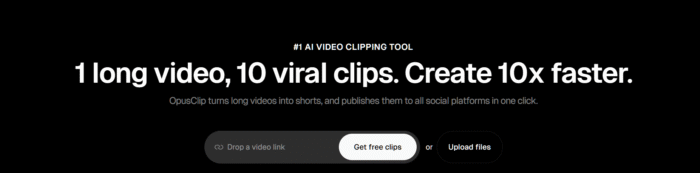
- Paste into Opus: Log in to Opus.pro and paste the link directly into the dashboard.
- Click “Get Clips”: The AI will immediately start watching and analyzing the video for you.
Step 2: Set the “Virality” Context
Before the AI starts cutting, give it instructions so it finds the right moments rather than random segments.
- Select Language: Ensure this is set correctly.
- Set Processing Timeframe: If the video is 2 hours long, you can tell it to only scan the “first 30 minutes.”
- Keyword Focus (Crucial): In the prompt box, type the specific topics you want clips about (e.g., “Focus on marketing strategies and AI tools”). This prevents the AI from clipping irrelevant small talk.
Step 3: The “Viral Score” Selection
Instead of watching hours of footage to find “good parts,” let the AI rank them for you.
- Wait 10 Minutes: Let the system process the footage.
- Check the Score: Opus assigns a “Viral Score” (0–100) to every clip based on current social media trends.
- Filter: Ignore anything scored below 80. Focus only on the “High Potential” clips (usually top 3–5). These are the moments statistically most likely to hold attention.

Step 4: Brand & Caption Polish
Generic AI clips look spammy. This step makes them look professional.
- Open Editor: Click “Edit” on your chosen clip.
- Apply Brand Template: Upload your company logo and change the highlight color to your brand’s hex code.
- Enable “Active Speaker” Layout: Ensure the AI is set to automatically switch the camera to whoever is talking (great for interview podcasts).
- Auto-Emojis: Turn on the “Auto Emoji” feature to add visual hooks (similar to the Alex Hormozi caption style) that increase watch time.
Step 5: Export & Distribute
- Download: Export the clip in 1080p.
- Post: Upload directly to TikTok, Instagram Reels, and YouTube Shorts.
- Result: You have transformed one piece of “old” content into 5-10 new assets that drive traffic back to your main channel or business.
💡 Pro Tip: The “Topic Filter”
If you are repurposing a very broad video (like a 2-hour livestream), don’t just run it once. Run the same video through Opus three different times with different keywords.
- Run 1: Keyword “Motivation” (for inspirational Reels).
- Run 2: Keyword “Tactics” (for educational Shorts).
- Run 3: Keyword “Funny” (for engaging TikToks). This triples your output from a single source file.
